
-
Summary
-
What is it
By using the Signature Surveys, you are able to easily collect feedback from your clients through our three rating faces, adding value to your relationship with partners.
-
How to do it
Refer to the following steps to easily add the survey into your signature email:-
Copy the survey snippet
You can get the Signature Survey snippet from your Crewhu profile, or directly inside Hub.
Using Crewhu:
First, you have to copy the survey snippet (HTML code with the rating faces) from you profile:
- Click on "Your name" > My Profile at the top of the page:
- On the Email Signature Snippet section, click on the View/Copy button (the Signature Survey feature must be enabled in your company's account):
- Select and copy (Ctrl + C) the wording and the three faces, as indicated:
Note:
- If you don't want the survey faces, you can select the Text Only Snippet option on the field above;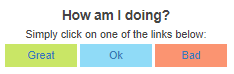
- If your email client or CRM requires source code you can access it by clicking the source code button.
Using Hub:
Click on your picture and go to "Settings":
Then go to "Snippets" and click on "Copy HTML":
Note:
- If you don't want the survey faces, you can select the Text Snippet option here:
Paste into your email signature
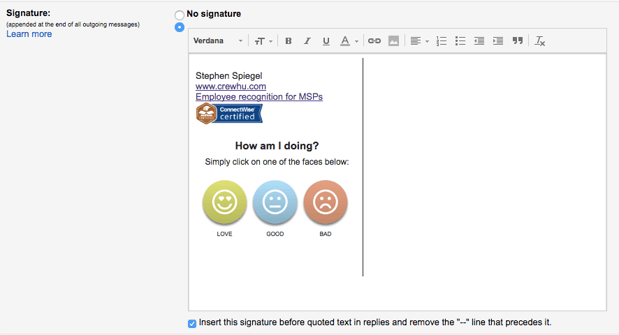
- Go to your email client's or CRMs settings page, go to the signature section and paste the survey snippet into your email signature. Below is an example of the Gmail client but it will also work in Outlook and many others.
Note:
If the email client doesn't identify the rating faces properly, you can try adding the HTML code (explained above) into the HTML section.
Important: Classic Outlook saves a local copy of the survey images when the signature is created. Because of this, changes made to the survey images in Crewhu may not automatically appear in an existing Classic Outlook signature. To display the updated images, copy the latest snippet from Crewhu and paste it into the email signature again. This limitation does not affect Outlook Web or New Outlook, as they load the images from the internet whenever an email is opened. For a permanent solution, we recommend using New Outlook or Outlook Web.
Comments
0 comments
Please sign in to leave a comment.